
Import your YouTube channels
Bring your YouTube subscriptions into Channel Surfer so the guide plays channels you already like. You need a free account and a computer.
On the Free plan: use the Channel Surfer bookmarklet, then paste what it copies. Free steps
Supporters: sync every subscription in one go, or paste channel and playlist links. Supporter steps
What's a bookmarklet?
A bookmarklet is a bookmark that runs a small tool on the page you're viewing. Ours reads the channels on your YouTube page and hands them to Channel Surfer. YouTube doesn't share your subscription list with other sites, so this is how you bring it over.
You add it by dragging a button into your bookmarks bar. If you can't see that bar, turn it on first:
- Chrome or Brave on a Mac: choose View > Always Show Bookmarks Bar, or press ⇧⌘B.
- Chrome or Brave on Windows: press Ctrl+Shift+B.
- Edge: Edge calls it the favorites bar. Press Ctrl+Shift+B on Windows or ⇧⌘B on a Mac.
- Safari: choose View > Show Favorites Bar.
- Firefox: choose View > Toolbars > Bookmarks Toolbar > Always Show.
Import on the Free plan
- Sign in, open your Dashboard, and select Import from YouTube.
- Drag the yellow Channel Surfer button to your bookmarks bar.
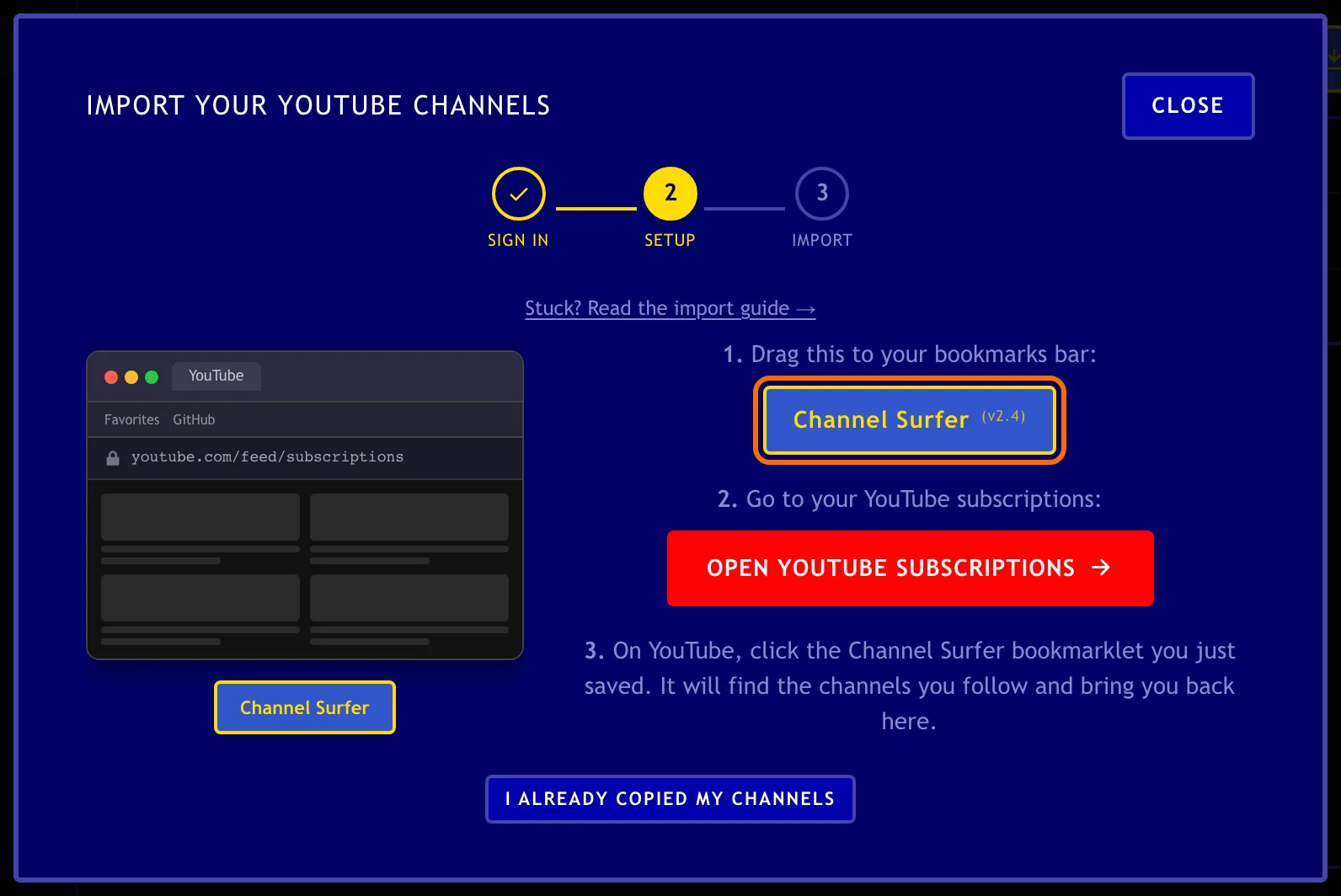
- Select Open YouTube Subscriptions. Make sure you're signed in to the YouTube account you want to import.
- On YouTube, select the Channel Surfer bookmark. It scrolls the page to collect your channels. Select Done if you want it to stop early.
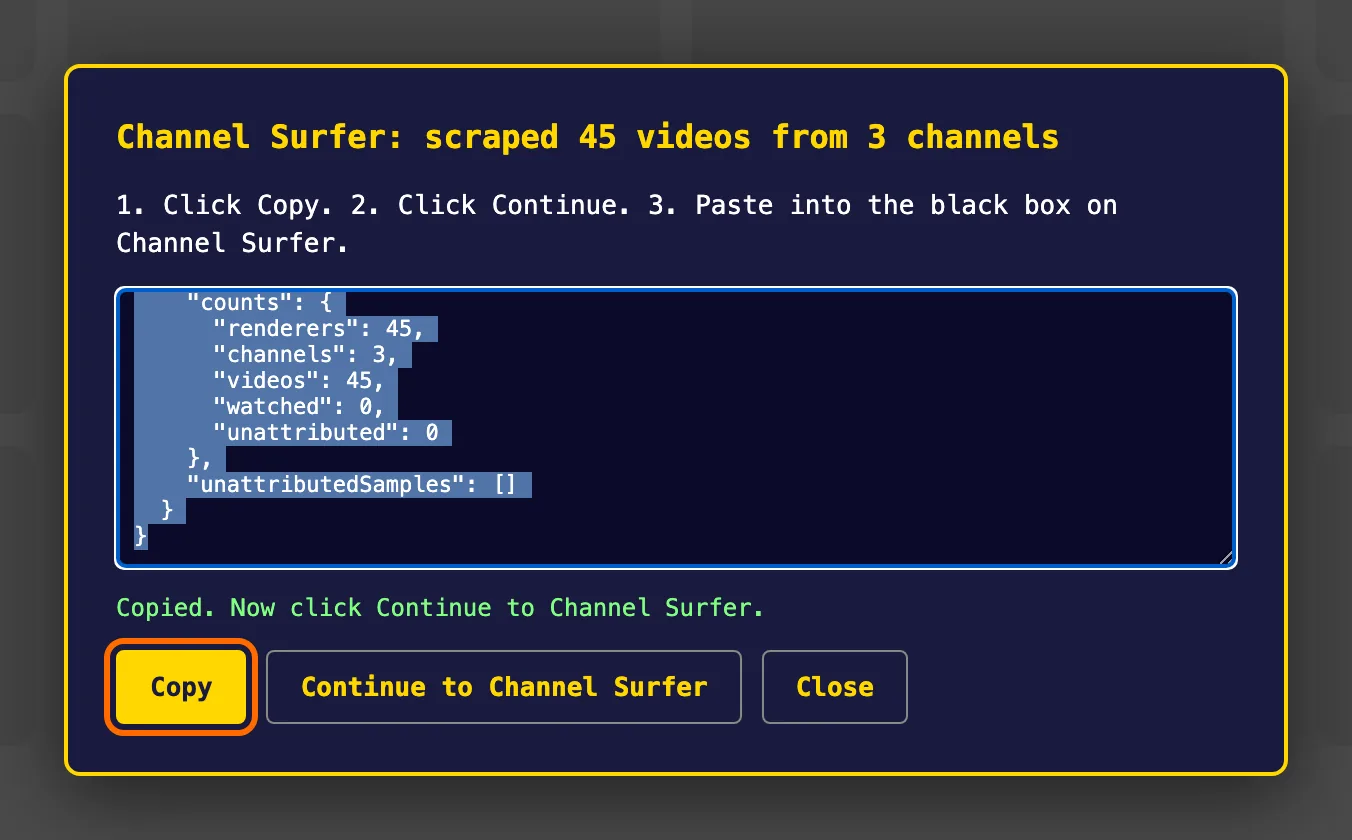
- In the popup, select Copy, then Continue to Channel Surfer.
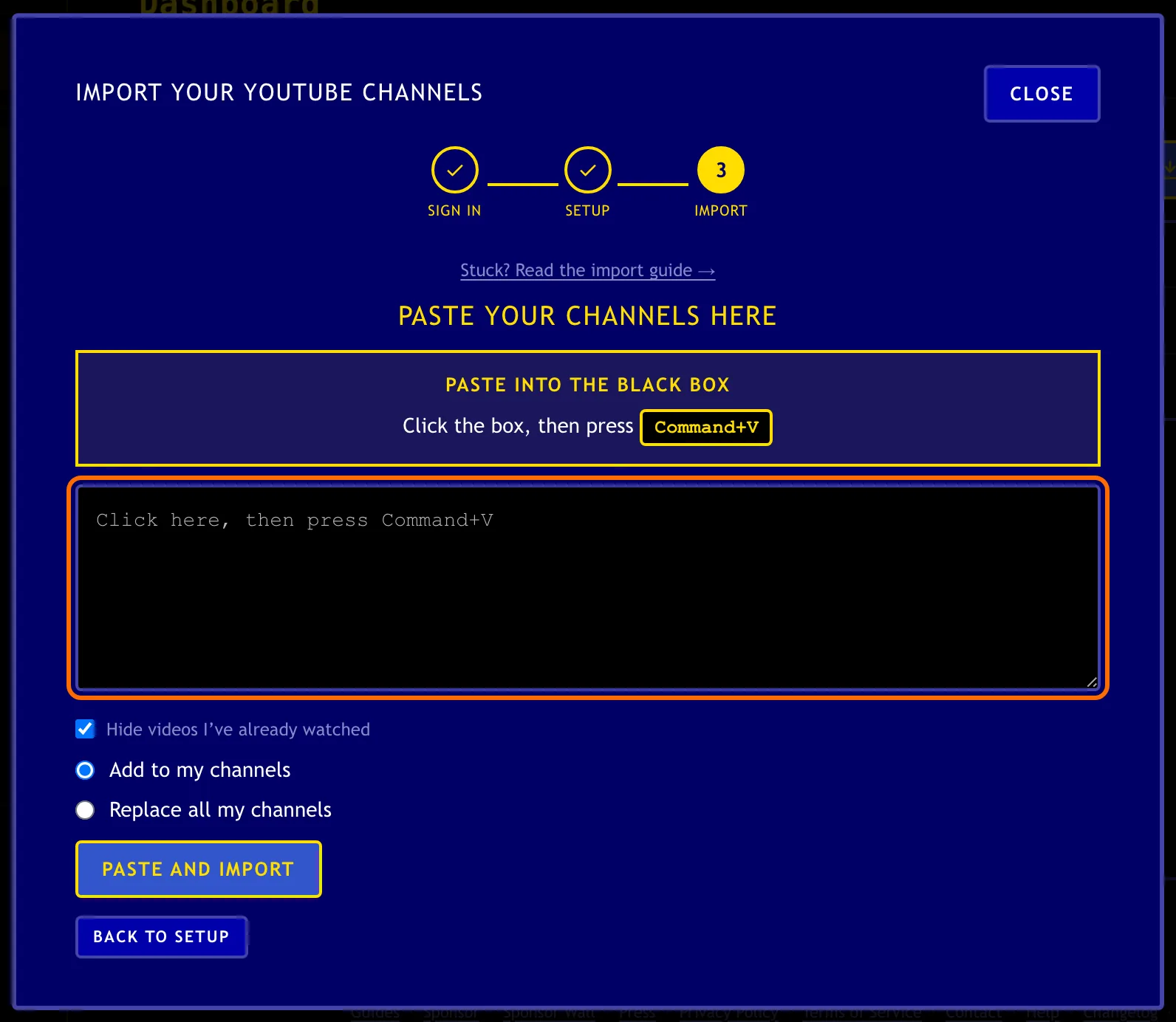
- Back on Channel Surfer, paste into the black box with Cmd+V on a Mac or Ctrl+V on Windows. Choose Add to my channels or Replace all my channels, then select Paste and import.
Your channels show up in the guide right away.
Good to know
- Free imports are saved in the browser you used. Another browser or device won't have them until you import there too.
- Your channels don't pick up new uploads on their own. Run the bookmarklet again whenever you want fresh videos.
- You can also run the bookmarklet on a YouTube playlist page to turn that playlist into a channel.
- Already copied your channels? Select I already copied my channels to go straight to the paste box.
Import as a Supporter
Supporters have two ways to add channels. Both save to your account, so your lineup follows you to every device where you sign in, and Channel Surfer checks for new videos on its own.
Sync all your subscriptions
- Open your Dashboard and select Import from YouTube.
- Drag the yellow Channel Surfer Sync button to your bookmarks bar.
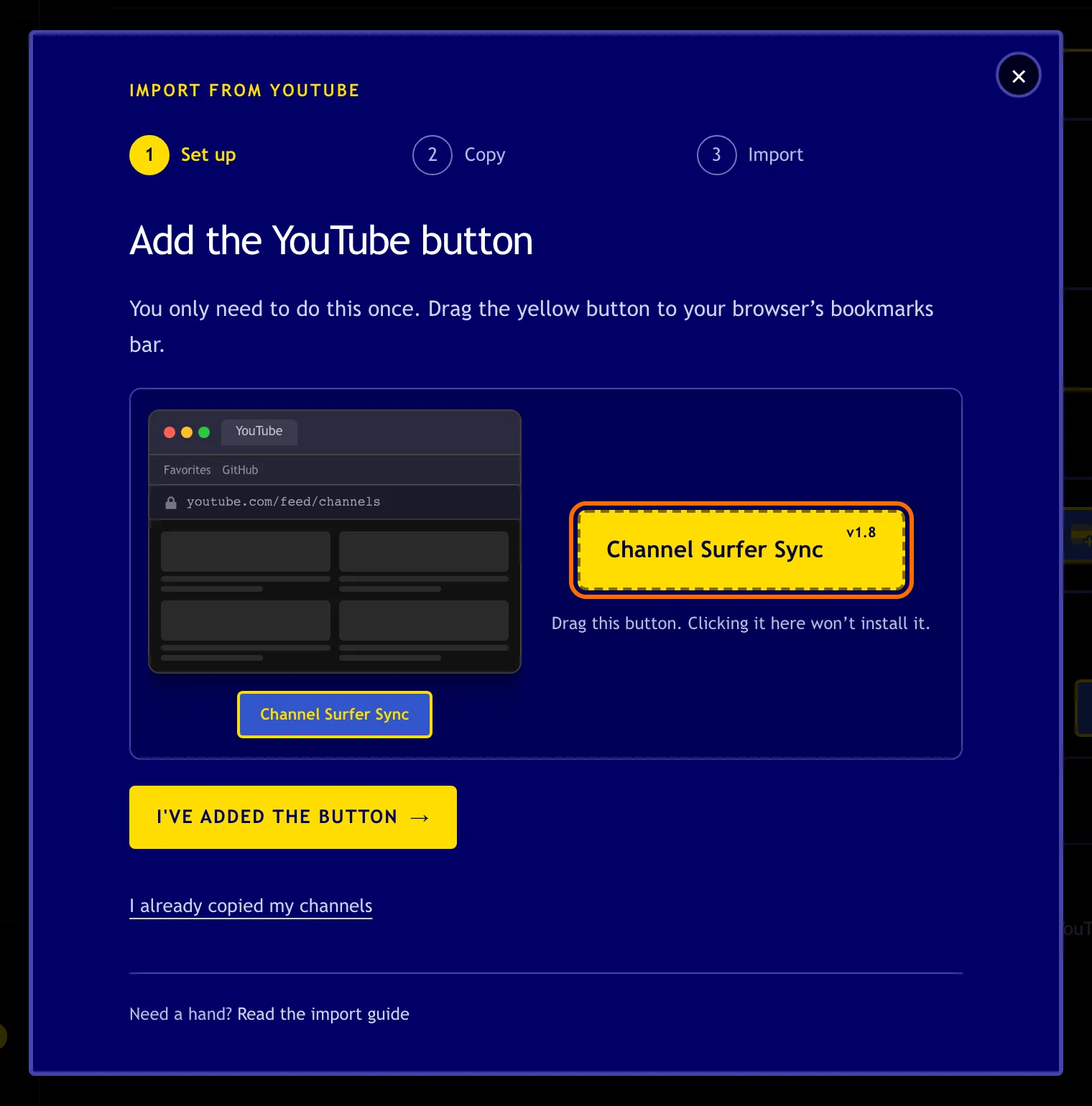
- Open your YouTube subscriptions page while signed in to YouTube.
- Select the Channel Surfer Sync bookmark and wait for it to copy your channel list. Then return to Channel Surfer.
- Paste the copied list into Your copied channel list. Use Command+V on a Mac or Ctrl+V on Windows and Linux. You can also select Check what I've copied if your browser allows clipboard access.
- Review the channel count and sample names, then select Import. Nothing is added until you select it.
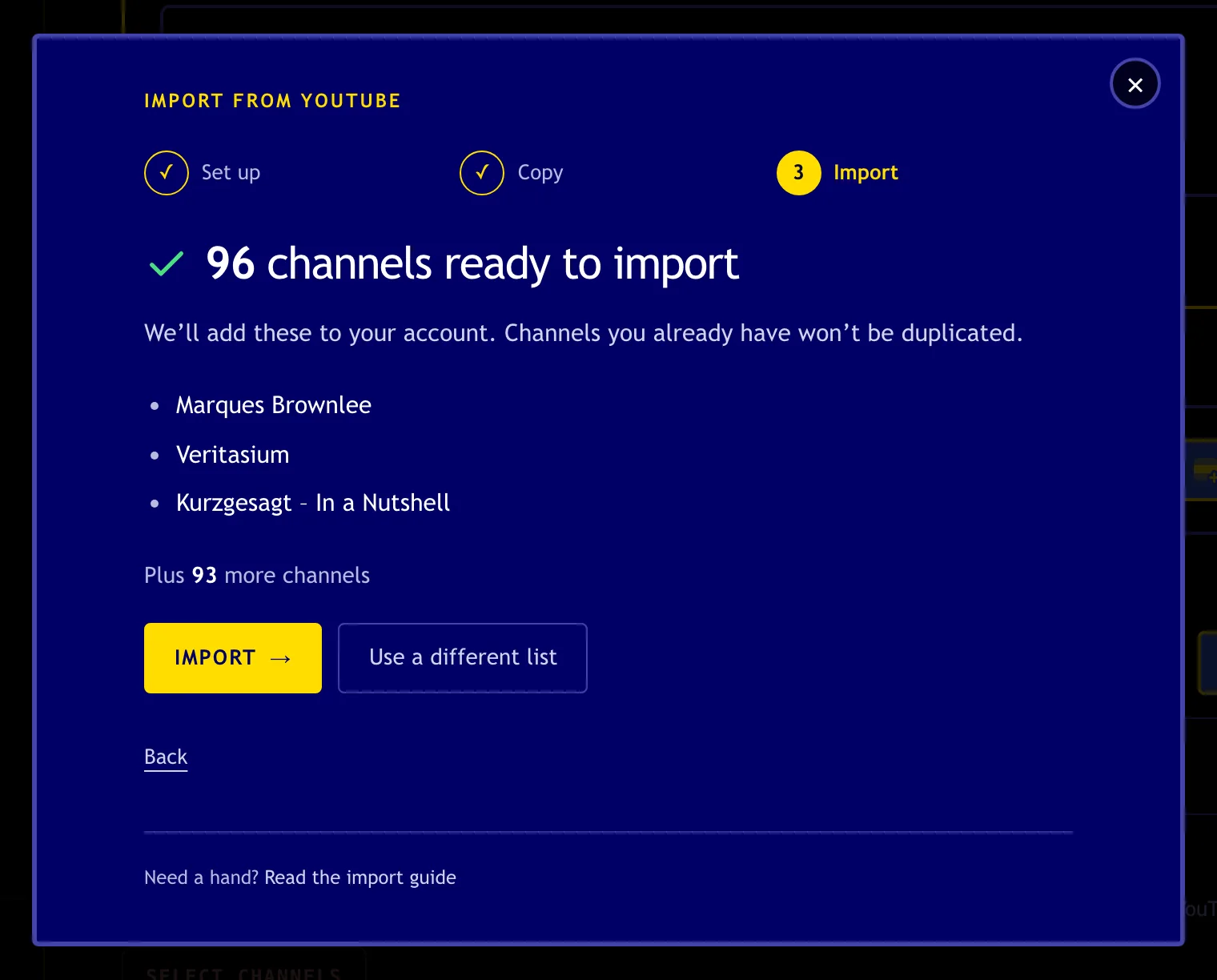
- Keep the tab open while the channels are added. The bar moves as groups of channels finish, and the counts show what has been added or was already in your account.
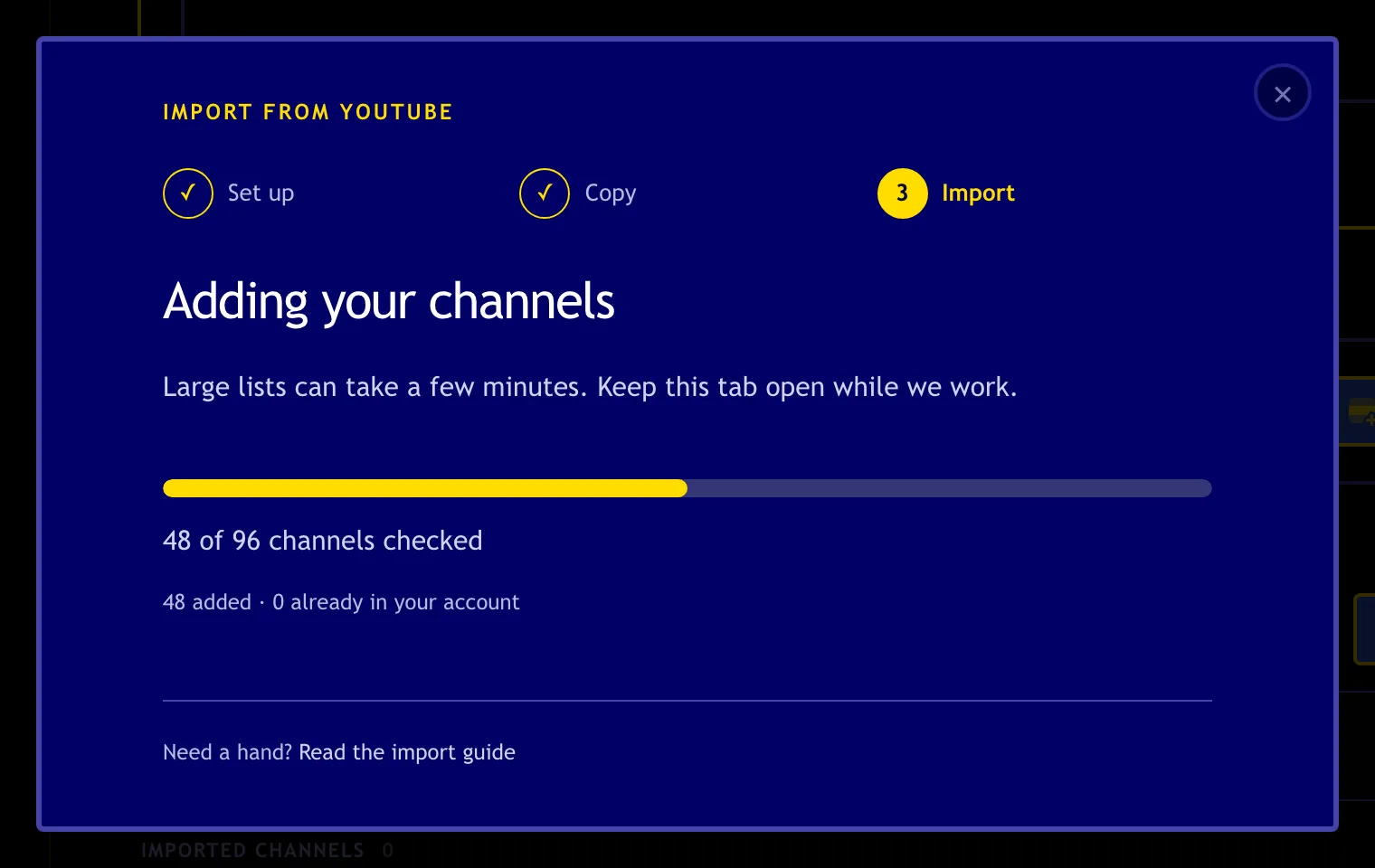
Each subscription becomes its own channel. Running it again adds new subscriptions and checks existing channels for new videos, without duplicating them. You can also run it on a playlist page, including your private playlists, to add just that playlist.
Large lists and retrying an import
A large list can take a few minutes. The first message shows how many channels are being checked; the count starts moving once the first group finishes. Keep the tab open until you see the result.
If the import stops, follow the message and select Try again when you're ready. In the same open window, it continues after the last completed group. If only some channels could not be added, it retries those channels. Channels already saved won't be duplicated.
Closed the window or refreshed the page? Copy or paste the list again. Your saved channels are still in your account. If the message asks you to sign in again, do that before importing.
Bulk import channels and playlists by link
On your Dashboard, paste up to 100 YouTube channel or playlist links into the box, one per line, then select Add channels. This works on a phone too.
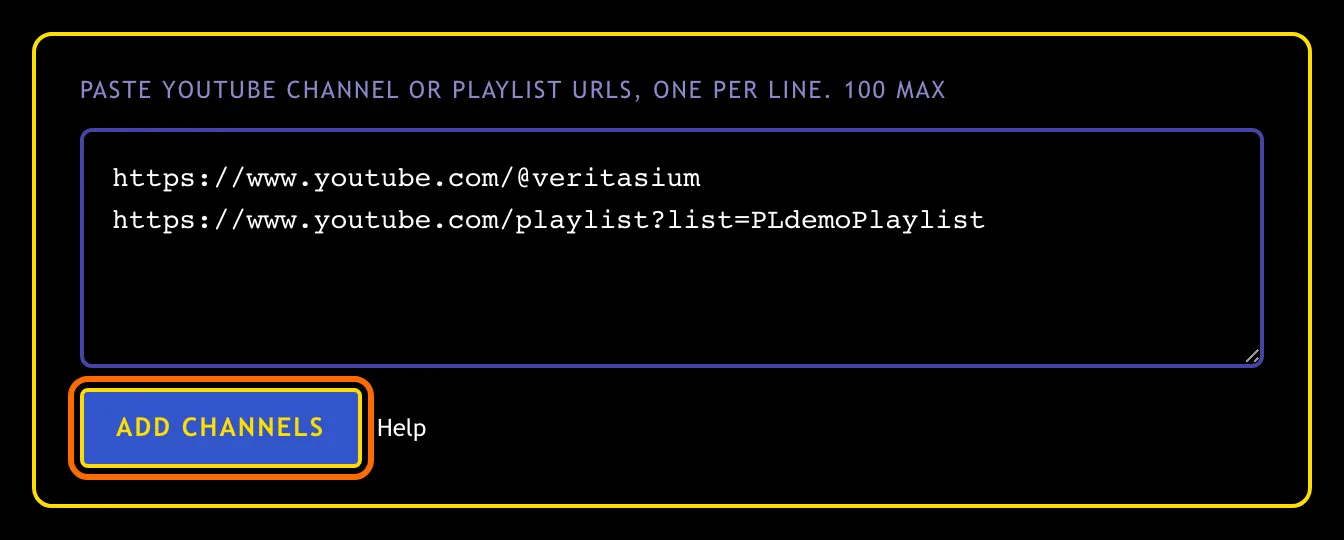
Each link becomes its own channel. Keep the page open until it finishes. Links you've already added are skipped, and if one fails, the rest still save.
With a single link you get two extra choices. All videos (up to 2,000) brings in the whole channel instead of the latest 15, and Exclude Shorts leaves Shorts out. Both can be changed later.
Manage your channels
Your channels are listed on your Dashboard. Each row has buttons to refresh, edit, or delete it, and to switch between the latest 15 videos and all of them. Select Button guide to see what each one does.
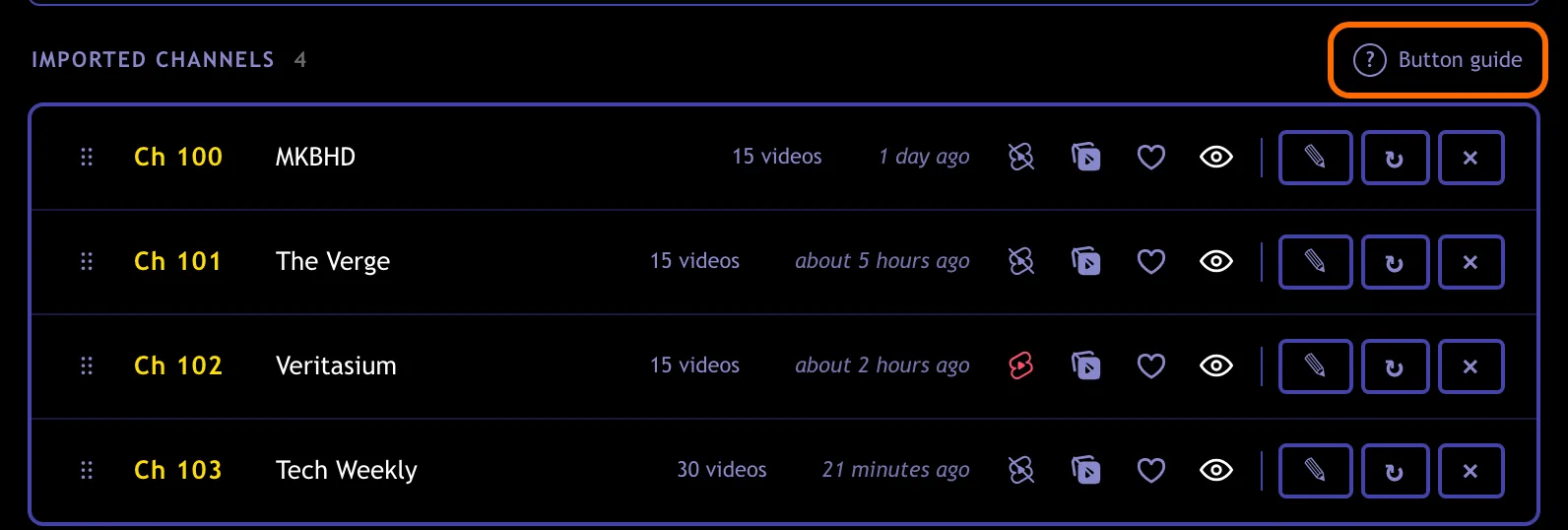
- To change several at once, select Select channels, tick the ones you want, then hide Shorts or delete them.
- To mix sources into one channel, select New custom channel, add your sources, then select Create channel.
On a phone or tablet
Bookmarklets don't run on phones, so import on a computer. Supporters can sign in on their phone afterward and see the same channels. Supporters can also paste channel and playlist links on a phone.
If something goes wrong
Find the message you saw:
- “That is a link, not channel data.”
- You pasted a YouTube link. Run the bookmarklet on YouTube, select Copy in the popup, then paste.
- “Your bookmarklet is out of date!”
- Delete the old Channel Surfer bookmark, then drag the new one from Import from YouTube on your Dashboard.
- “No videos found on this page.”
- Open your YouTube subscriptions page, wait for the videos to load, then select the bookmark again.
- “No playable videos found in the import.”
- Every video it found was a Short, a livestream, or had no length. Try your subscriptions page instead of a single playlist.
- “Copy failed. Press Cmd+C / Ctrl+C, then click Continue.”
- Your browser blocked the copy. Press Cmd+C on a Mac or Ctrl+C on Windows, then select Continue to Channel Surfer.
- “That's the Supporter sync bookmarklet.”
- You're signed in to a Free account. Use the Free bookmarklet from Import from YouTube, or become a Supporter.
- “This playlist is private or unavailable.”
- Private playlists can't be added by link. Open the playlist on YouTube and run the Channel Surfer Sync bookmarklet there.
Still need help?
Send us a message from the contact page. Supporters get a reply within 24 hours.
Updated October 8, 2026